Add and place your first item
Before you begin
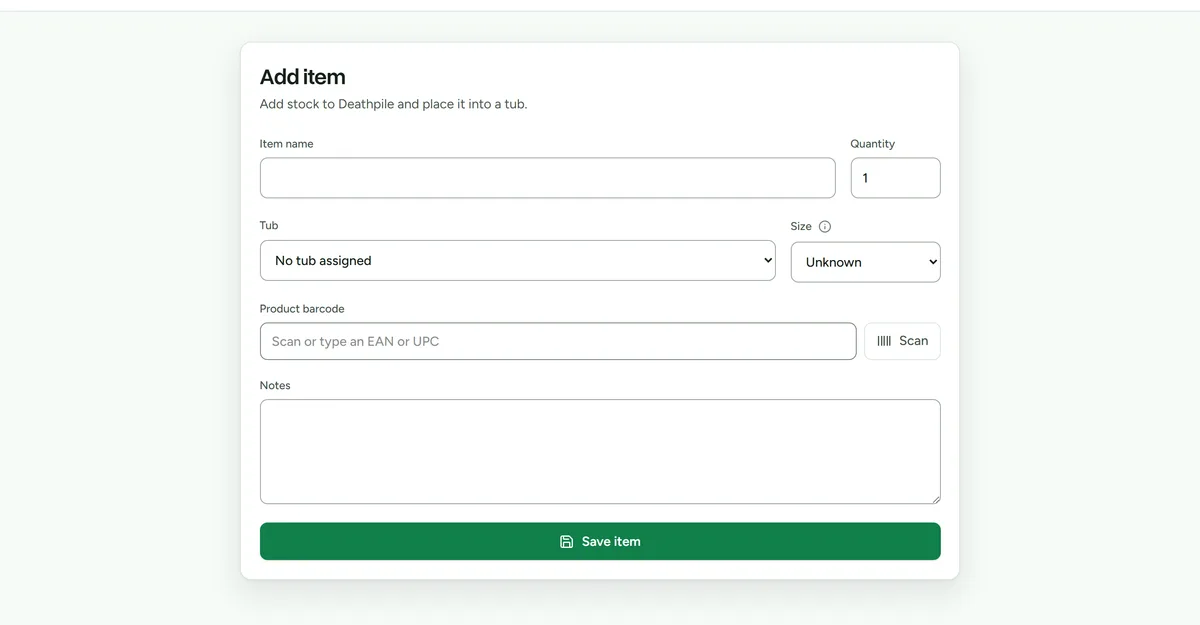 Adding an item. Quantity is the physical count, not the listing quantity.
Create at least one location, container type, and physical storage unit in Settings > Storage.
Add the item
- Open Stock.
- Select Add item.
- Enter a clear item name and the quantity you physically hold.
- Choose a size from XS to XL if you know it. Size is used for storage capacity, not clothing fit.
- Select the item's physical storage unit.
- Add optional notes that will help your workspace identify the item.
- Save the item.
Expected result
The item appears in Stock with its current quantity and storage location. Items saved without a storage unit appear under Needs a home until placed.
Adding an item can start the workspace owner's one-time 14-day trial. Adding an item to the pick list does not change its stock quantity.