Import and place stock
CSV import is useful when your stock already lives in a spreadsheet.
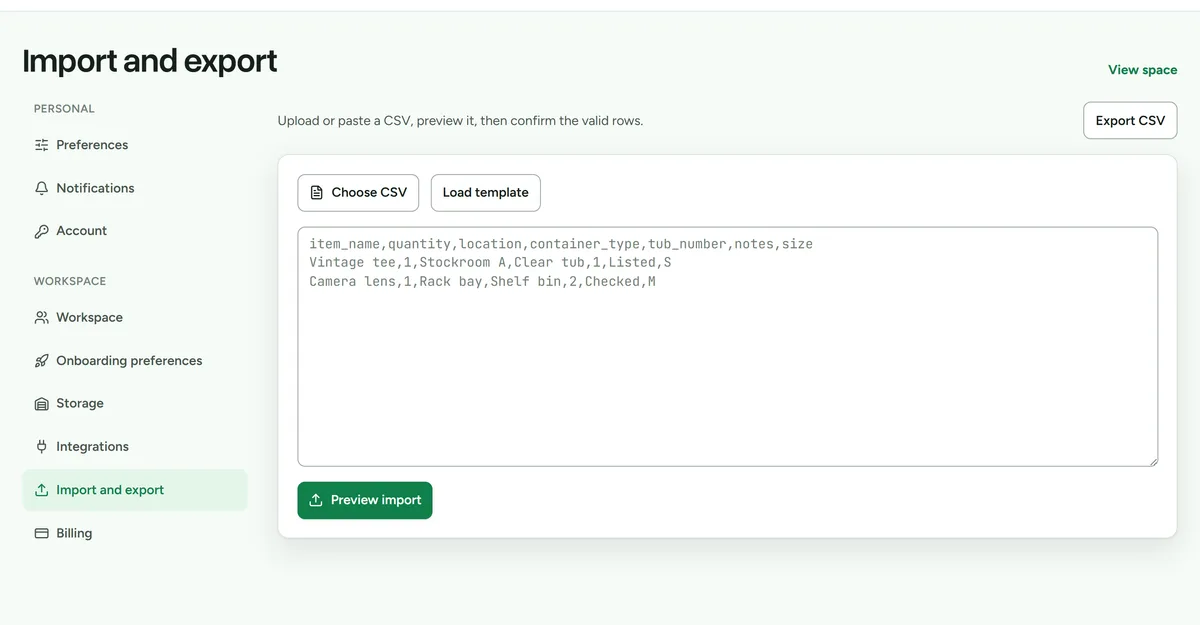 CSV import maps your columns before anything is written.
Prepare the file
Use these headings:
item_name,quantity,location,container_type,tub_number,notes,size
Vintage tee,1,Stockroom A,Clear tub,1,Listed,S
Size may be XS, S, M, L, or XL. Review names and quantities before importing.
Validate and import
- Open Settings > Import and export.
- Paste or upload the CSV data.
- Review the preview and correct every validation problem.
- Confirm the import only when the preview matches the physical stock.
During confirmation, Deathpile can create missing locations, container types, and physical units named in valid rows. The committed import can start the owner's one-time trial.
Place unassigned stock
Rows without usable storage details remain unplaced.
- Open Space.
- Find Needs a home.
- Choose a physical storage unit for each item.
- Confirm the placement.
Export
Use the export control in Settings > Import and export to download workspace stock. Export remains available when a workspace has become read-only.